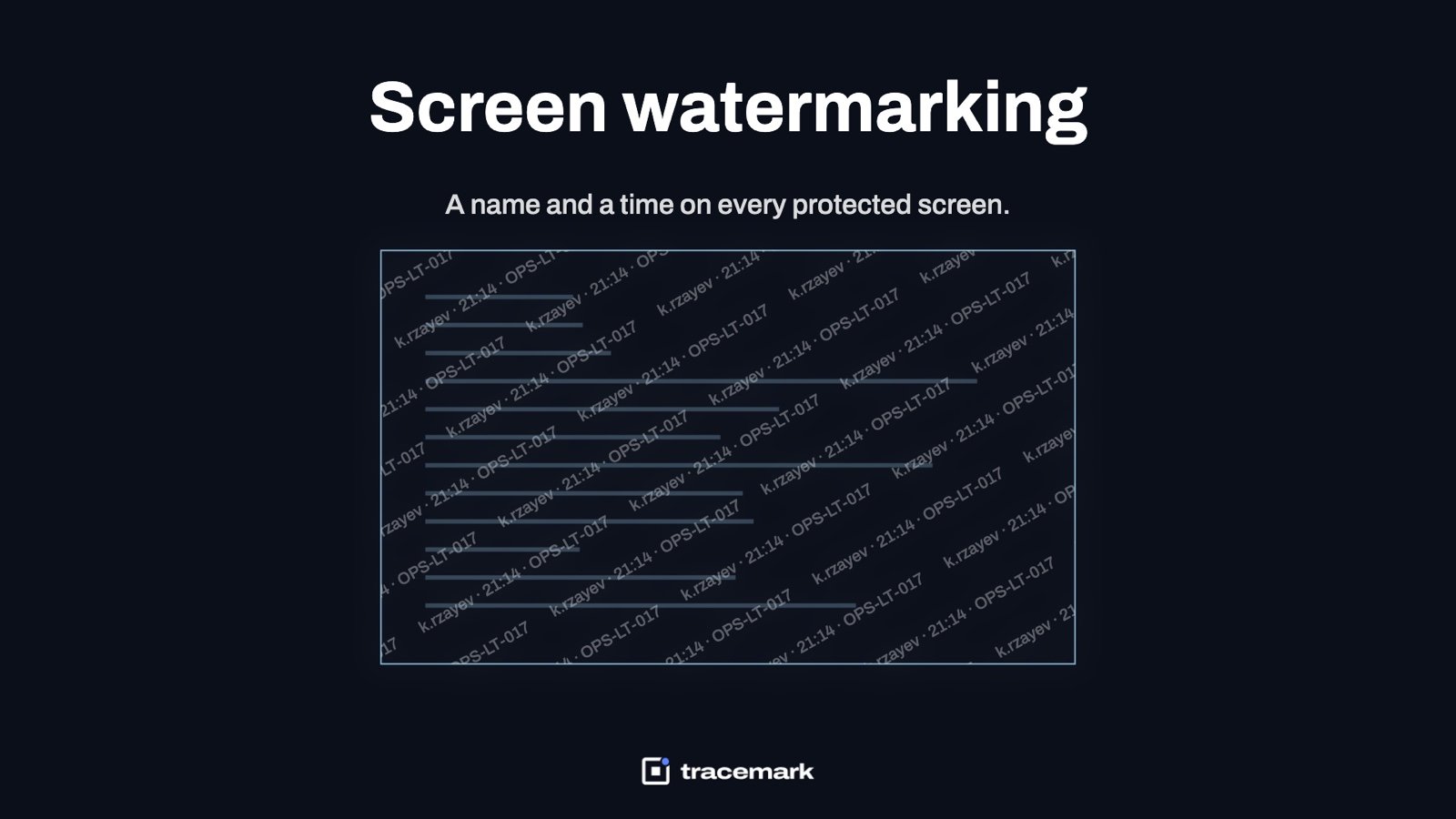
Screen watermark software draws a faint overlay on the display while someone is looking at protected data. The overlay carries the viewer's name, the time, and the device. If that person photographs the screen with a phone, takes a screenshot, or shares their monitor on a video call, the copy carries their identity with it. The point is not to stop the copy at the moment it is made. The point is that nobody can make one anonymously. This guide explains where screen watermarking fits in a data protection program, what a good implementation looks like, what it cannot do, and how to roll it out without annoying everyone.
The gap that screen watermarking closes
Most data protection controls work on files and channels. A DLP policy inspects a document before it leaves by email, USB, upload or clipboard. Classification labels tell those policies which files matter. Access control decides who can open what. If you want the full picture, start with what Data Loss Prevention is.
None of those controls see the screen. Once a file is open and rendered, the pixels are outside the file system. A phone held up to a monitor bypasses every file-based control. So does a screenshot pasted into a personal chat, or a screen share that a participant records.
This matters most for roles that look at sensitive records one at a time: call center agents on customer accounts, finance on payroll, HR on personnel files, support engineers with production access. Each person is authorized to see the data. The risk is that they copy it in a way that leaves no trace.
Screen watermarking is the control for that gap. It is an insider threat deterrent rather than a lock.
How screen watermark software works
An agent on the endpoint draws a semi-transparent layer over the application window or the whole display. The layer repeats a short text pattern: typically the user's name or login, the current date and time, and the device name. The pattern is tiled so that a crop of any part of the screen still contains at least one full copy.
A few properties separate a usable tool from a nuisance.
It is dynamic. The text is generated per session from the logged-in user and the clock. Two people looking at the same record see different overlays. A static image stamped on a document does not do this.
It is low-contrast but legible. The overlay must be faint enough to work behind for eight hours and dense enough that a phone photo taken from a meter away still resolves the text. Light gray on white, dark gray on dark themes, rotated 30 to 45 degrees, in a tiled grid, is the common pattern.
It is scoped. The watermark appears on protected screens, not on every window. Protected means an application, a URL, or a window title that policy says contains sensitive data. The email client, the CRM, the HR system, the production database console. Not the weather widget.
It survives the common capture paths. An OS screenshot, a snipping tool, a screen share and a phone camera should all carry the mark.
It is paired with evidence. A watermark on a leaked photo tells you who. The audit log should tell you when that person had the record open.
What a watermark does and does not do
Be honest about this with stakeholders before deployment.
| Scenario | Watermark helps | Why |
|---|---|---|
| Phone photo of the screen | Yes | Photo carries the name, time and device |
| OS screenshot, pasted into chat | Yes | Screenshot includes the overlay |
| Screen share recorded by a participant | Yes | Recording includes the overlay |
| Retyping the data by hand | No | Nothing is captured |
| Exporting the file by USB or email | No | That is a job for DLP and device control |
| Determined attacker with image editing | Partly | Tiled, low-contrast marks are tedious to remove cleanly, but not impossible |
A watermark is a deterrent and an attribution tool. It raises the cost of leaking and makes attribution possible after the fact. It does not make the screen uncopyable. Pair it with the file-level controls described in the insider risk management guide rather than treating it as a replacement for them.
Choosing what to protect
The scope decision is the whole project. Too narrow and the control misses the data that matters. Too wide and the project gets rolled back after a week of complaints about screen clutter.
Start from the data, not the application. Ask which records would cause real harm if a photo of them appeared outside the company: customer PII, payment data, salary data, source code, unreleased financials. Then find where those records are viewed.
Protect by application or window title where the data lives in a desktop app, by URL pattern where it lives in a browser, and the remote desktop session where contractors reach production. Do not protect the operating system shell, the browser in general, or chat tools. A reasonable first wave is three to five applications. Expand once the help desk is quiet.
Screenshot handling: evidence or block
Screen watermark software is often bundled with screenshot handling, because the two address the same window. There are two reasonable modes.
Keep as evidence. The screenshot goes through, and a copy is stored with who, when, which window and which policy. This is the right default for most teams. Users can still send an error to the help desk, and the security team has a record if a screenshot later turns up where it should not.
Block. The screenshot is prevented on protected windows. This is right for a narrow set of screens, such as a payment card entry form or a password vault, where no legitimate screenshot exists.
Choose per application, not globally. A global block produces a flood of tickets and a request to turn the whole thing off.
The webcam adds a third option for high-value desks. A camera guard notices a phone raised toward the screen. It is for the few seats where a phone photo is the realistic threat.
Rolling it out without a backlash
Most screen watermarking failures are not technical. They are user acceptance failures.
Tell people. Announce what the overlay is, why it is there, and what it contains. A watermark that shows the user's own name is a transparency feature when explained and a surveillance feature when discovered. The deterrent depends on people knowing it is there anyway.
Start faint and adjust. Begin at a lower opacity than you think you need, check that a phone photo still resolves the text, and raise it only if the test fails.
Pilot with one team. Pick the team with the strongest reason, usually whoever handles customer records, and run it for two weeks. Collect the complaints, fix the layout, then expand.
Write the policy down. Your acceptable use policy should say that protected screens are marked, that screenshots of them may be retained, and for how long. In some jurisdictions this is a legal requirement as well as good practice. The UK ICO's guidance on monitoring workers is a useful reference even outside the UK: https://ico.org.uk/for-organisations/uk-gdpr-guidance-and-resources/employment/monitoring-workers/
Tie it to the rest of the program. The watermark catches the photo. Clipboard DLP catches the paste. USB device control catches the file copy. A user who sees that every path is covered stops looking for one.
Screen watermarking checklist
- List the record types whose exposure would cause real harm, and the applications or URLs where they are viewed.
- Decide the overlay content: user name or login, timestamp, device name. Avoid putting the data itself in the mark.
- Pick opacity, angle and tile density, and verify with a phone photo from a normal desk distance that the text is readable.
- Scope the watermark to the protected applications and URLs only, not to the whole desktop.
- Decide screenshot handling per application: keep as evidence by default, block only where no legitimate screenshot exists.
- Confirm the overlay appears in screen shares and OS screenshots on a test machine before the pilot.
- Update the acceptable use policy and tell users what the mark is and what is retained.
- Pilot with one team for two weeks, collect complaints, adjust, then expand.
- Make sure the audit trail records who had which protected window open and when, so a leaked image can be matched to a session.
- Review protected scope quarterly as applications change.
How Tracemark does it
Tracemark's Insider Risk product delivers screen watermarking through the same agent that runs DLP, device control and the rest of the platform, managed from the same console.
The watermark is visible and dynamic. On protected screens the agent draws the viewer's name, the time, and the device, so a phone photo or a screenshot traces back to a person and a moment. Which screens are protected is set by policy from the console.
Screenshots of protected screens are handled per policy: they can be kept as evidence or blocked. Camera Guard adds the webcam sensor for the desks that need it. It notices a phone raised at the screen.
Because the same agent runs the DLP and device control policies, the watermark sits alongside the controls for the other channels: clipboard paste, USB and file copy, print, uploads, email and AI prompts. Every DLP decision lands in the Incidents queue with who, what, channel, policy and outcome.
Insider Risk also builds a risk score per user from signals such as USB use, network activity, uploads and DLP events, and cases that link people, files and devices on one graph. A watermark that identifies a person on a leaked image is the start of an investigation, and the case view is where it continues.
Frequently asked questions
Does a screen watermark stop screenshots?
Not by itself. The watermark makes a screenshot carry the viewer's identity. Blocking screenshots is a separate control, and Tracemark can apply it per protected screen. Most teams keep screenshots as evidence rather than block them, and block only on the few screens where no legitimate screenshot exists.
Will users be able to see the watermark?
Yes, and they should. A visible watermark is a deterrent because the viewer knows the copy will carry their name. It is drawn faint enough to work behind all day, but it is not hidden.
What should the watermark contain?
The viewer's name or login, the date and time, and the device. That is enough to identify a session. Do not put the sensitive data itself, or anything that would add to the exposure if the image leaked.
Which applications should be watermarked?
The ones where sensitive records are viewed one at a time: CRM, HR and payroll, finance, internal portals with customer data, and remote desktop sessions into production. Not the whole desktop.
Try it
Try Tracemark free for three months. Claim it at tracemark.ca