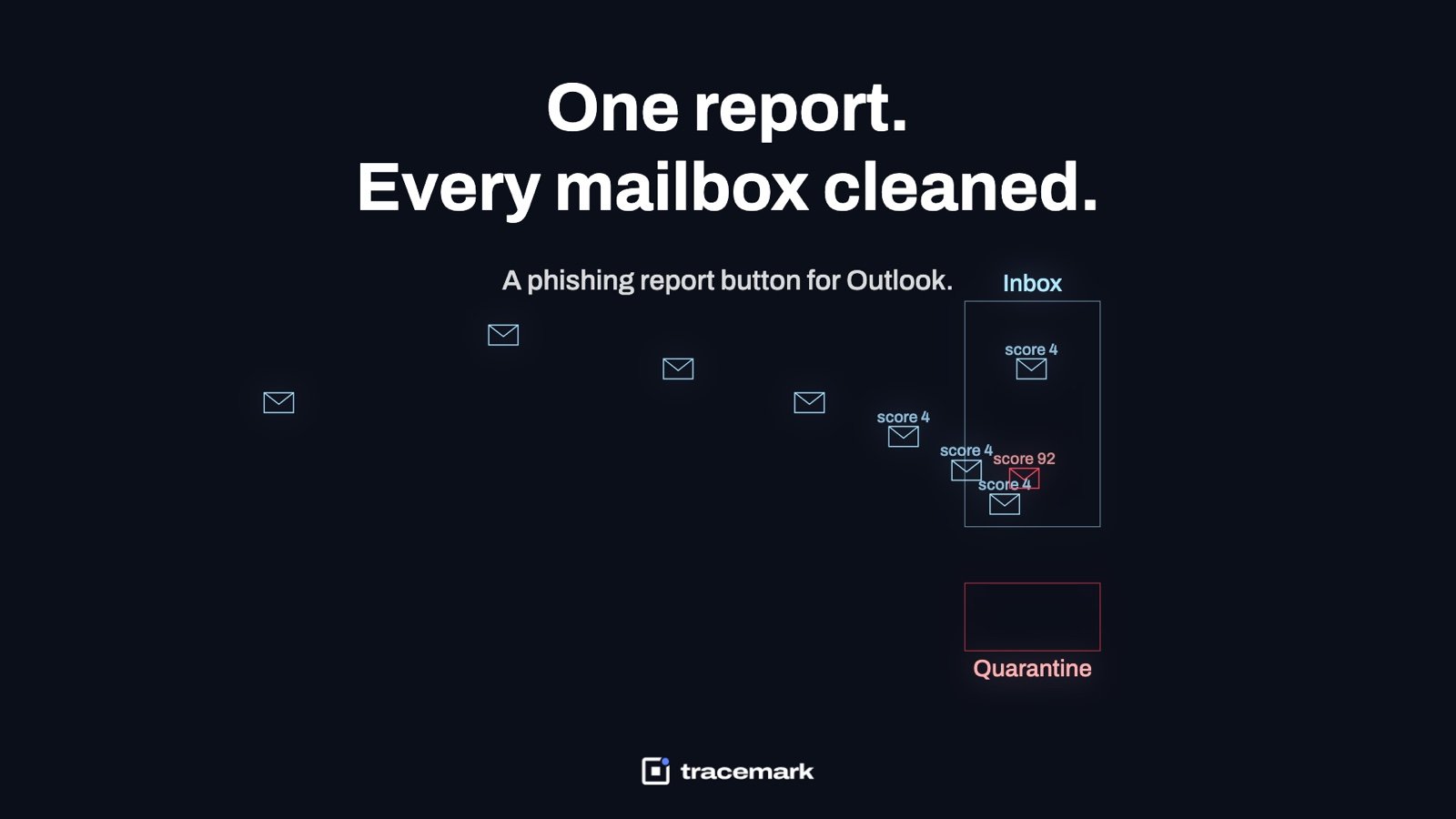
A phishing report button in Outlook gives every employee a one-click way to send a suspicious email to the security team, with the original message and headers intact. That is the easy half. The hard half is what happens next: finding every other copy of the same campaign in every other mailbox and removing them before someone clicks. This article explains why forwarding is not reporting, what a good report button does, how to turn one report into a campaign-wide purge, and what to measure so you know it is working.
Why "just forward it to IT" fails
Most companies start with an email address: phishing@company.com, or a note in the onboarding deck that says "forward anything suspicious to the helpdesk". It fails for four reasons.
First, forwarding strips the evidence. When a user forwards a message, Outlook rewrites the headers. The original sender IP, the Authentication-Results line, the Message-ID and the return path are gone. What arrives at the helpdesk is a copy of the body with the user's own headers on top. Forwarding as an attachment keeps the headers, but almost nobody does that unprompted.
Second, it depends on memory. The user has to remember the address, open a new message, attach or forward, and type something. Each step is a chance to give up.
Third, there is no feedback. A report into a shared mailbox disappears. The user never learns whether the email was dangerous, so the next time they are less likely to bother.
Fourth, and most important, a forwarded email is one data point about one mailbox. Phishing is sent in campaigns. The same lure, from the same sender or the same newly registered domain, lands in dozens or hundreds of inboxes within minutes. One report tells you about one copy. The question that matters is: who else got it, and has anyone opened the link?
What a good phishing report button for Outlook does
A report button lives in the Outlook ribbon (desktop) and in the message actions of Outlook on the web. Pressing it should do the following, without the user leaving the message.
- Capture the original message as a complete .eml or .msg file, headers included, not a forwarded copy.
- Record who reported it, from which mailbox, at what time, and whether the message was already opened.
- Move the message out of the inbox so the user cannot click it later by accident. Junk or a quarantine folder both work; deletion is worse because you may need the user's copy as evidence.
- Confirm to the user that the report was received. A short confirmation message is enough.
- Deliver the report to a place the security team actually watches: a queue, a ticket, or an analysis pipeline, not a mailbox that fills up with auto-replies.
Two design points matter. The button must be installed by policy so that every mailbox has it, including new starters and shared mailboxes. And it must not depend on the user being technical. A single word, "Report", is better than a dialog with five options.
Microsoft documents the Outlook add-in model and manifest deployment in Microsoft Learn, which is the right starting point for understanding how centrally deployed add-ins reach every user: https://learn.microsoft.com/office/dev/add-ins/outlook/
From one report to the whole campaign
This is where most programs stop, and where the real value is. Once you have one clean sample with headers, you can describe the campaign. The useful fingerprints are:
| Signal | Why it is useful | Where to find it |
|---|---|---|
| Sender domain and return path | Campaigns reuse one or two freshly registered domains | Headers: From, Return-Path |
| Sending IP | Often shared across the whole batch | Headers: Received, Authentication-Results |
| Subject pattern | Lures vary by a name or invoice number but keep a template | Subject line |
| URL host | Landing pages are usually on one host or one shortener | Body links |
| Attachment hash | Identical payloads across all copies | Attachment |
| Time window | Campaigns land within minutes | Received timestamps |
With these in hand, search the mail system for every message that matches. On Microsoft 365 this is a content search or threat explorer query; on on-prem Exchange it is a compliance search followed by a purge action. The outcome you want is a list: every mailbox that received a copy, whether the copy was read, and whether it is still in the inbox.
Then act on the list as one unit. Remove every copy. Note which users opened the message. Check the URL host against your proxy or DNS logs to see who clicked. Reset credentials for anyone who submitted a form. This is a campaign response, not a per-email response, and it should take minutes, not an afternoon.
Judge all copies together
Reviewing one copy at a time leads to inconsistent verdicts. Analyst A marks a copy as spam, analyst B marks another as phishing, and the campaign is half purged. A campaign view, where all matching messages are grouped and get one verdict, fixes this. It also gives you an honest count: how many were delivered, how many were reported, how many were opened before the purge.
Feed the indicators back into the endpoint
The sender domain and the URL host are indicators of compromise. They should not stop at the mail server. Push them to the endpoints so that any later contact with the same domain, from a browser, a document link or a script, is caught. This is also how you find the user who clicked from a phone and then opened the same link on a laptop.
What good looks like
A mature phishing response program has a few measurable properties.
- Every mailbox has the button, and you can prove it with an inventory, not an assumption.
- Time from first report to full purge is measured and short. Hours is poor. Minutes is the goal.
- Reports get a verdict and the reporter is told. A user who reports a benign newsletter still gets a thank-you, because the habit is what you are building.
- The campaign, not the message, is the unit of work. One ticket per campaign, with the count of copies, reported copies, opened copies and clicks.
- Indicators from each campaign are hunted on endpoints, and hits are linked back to the campaign.
- Inbound security posture is measured. SPF, DKIM and DMARC policy, external sender tagging, attachment and link rewriting, are checked, not assumed. CISA's guidance on phishing is a useful public reference for the controls that matter: https://www.cisa.gov/topics/cyber-threats-and-advisories/types-of-cyber-threats/phishing
This connects to a broader email security program for on-prem Exchange and Microsoft 365. A report button with nothing behind it is a suggestion box. A report button wired to campaign purge is a control.
A practical checklist
Use this to assess your own program before buying or building anything.
- The report button is deployed by policy to every mailbox, including Outlook on the web.
- A pressed button captures the original message with headers, not a forward.
- The reporter's identity, mailbox and timestamp are recorded.
- The reported message is moved out of the inbox automatically.
- The user receives a confirmation and, later, a verdict.
- Reports land in a queue the security team actually watches.
- One report can be expanded into every matching copy across all mailboxes.
- All copies of a campaign receive one verdict and one purge action.
- Opened copies and clicked links are identified and followed up.
- Sender domains and URL hosts from each campaign are hunted on every endpoint.
- Inbound posture (SPF, DKIM, DMARC, external tagging) is measured and reviewed.
- Time-to-purge is tracked per campaign and reported monthly.
- Look-alike domains of your own brand are watched, because the next campaign may impersonate you.
If you cannot tick the "every matching copy" and "one purge action" items, you have a reporting tool, not a response capability.
Common mistakes
Making the button optional. If users have to install it themselves, coverage will be partial and the gap will be exactly the people who need it most.
Deleting instead of quarantining. You lose evidence and you cannot restore a false positive.
Purging only the reported copy. This is the most common gap. The reporter is safe; the other recipients are not.
No feedback loop. Reporting rates fall when nobody answers. A verdict message, even an automated one, keeps the habit alive.
Treating indicators as mail-only. The attacker's domain will be contacted from browsers, chat links and documents too. Hunt it on endpoints. This is the same logic as insider risk management: one signal is interesting, a linked set of signals across people, files and devices is a case.
Ignoring your own brand. Attackers register look-alike domains of your company to phish your customers and partners. Watching for those registrations is part of the same program.
How Tracemark does it
Tracemark's Email & Threat Intel product puts a Report button in Outlook. A user presses it on a suspicious email and the report reaches the Tracemark console. One report is enough to purge the campaign: Tracemark removes the campaign from every mailbox. A campaign view judges all copies together, so the verdict and the purge apply to the whole set, not one message at a time.
The indicators from a campaign, attacker domains and other signs of compromise, are hunted on every endpoint by the same Tracemark agent that delivers DLP, device control and the other products. The console also measures inbound mail security posture, rather than assuming it is configured, and runs brand watch for look-alike domains of your company. It works with Microsoft 365 and on-prem Exchange.
The same agent and console cover the other channels too. For example, the browser extension that checks AI prompts and uploads is force-installed by policy in Chrome and Edge, so one platform handles mail, browser and endpoint evidence together.
Frequently asked questions
Where should a phishing report button for Outlook live?
In the message itself, one press, no dialog. Tracemark puts a Report button in Outlook. If your users also read mail in a browser or on a phone, check that whatever you deploy reaches those surfaces too, and verify coverage with an inventory rather than an assumption.
What happens to the user's copy when they report it?
The report becomes the sample for the campaign. Once the campaign is judged, the purge removes it from every mailbox, so the reporter's copy does not stay behind to be clicked later.
Can one report really remove the email from everyone else's mailbox?
That is the purpose. The reported sample is used to identify the campaign, every copy across every mailbox is found, and a single purge action removes them. The campaign view shows how many copies there were and what the verdict was.
Does this work for on-prem Exchange or only Microsoft 365?
Both. Tracemark's Email & Threat Intel works with Microsoft 365 and with on-prem Exchange.
Try it
Try Tracemark free for three months. Claim it at tracemark.ca