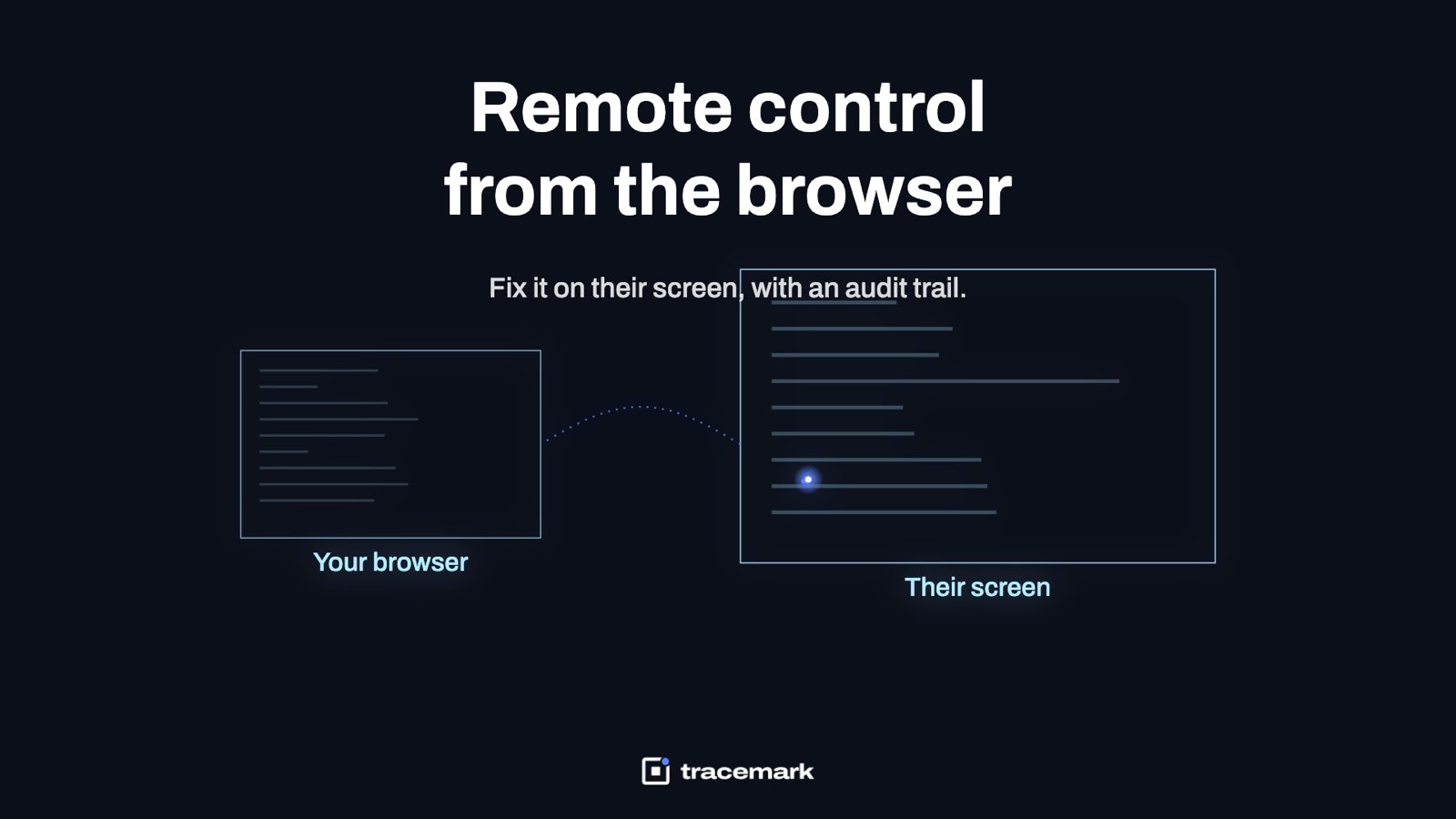
Remote control software for IT support lets a technician see and operate an employee's screen from somewhere else. The best version of it runs in the browser, needs no second client on the technician's machine, does not pass the screen through a vendor's relay, tells the user a session is running, and keeps a record of who connected to which device and when. This guide explains why those points matter, how remote support is usually set up, what a good setup looks like, and what to check before you roll one out.
Why remote control is a security problem, not just a helpdesk tool
A remote control tool is, by design, a way for one person to operate another person's computer. That is exactly what an attacker wants. The tools built for helpdesks are the same tools used in support scams and in many intrusions, because they are signed, trusted, and already allowed through the firewall. CISA has published an advisory on remote monitoring and management tools being abused this way: https://www.cisa.gov/news-events/cybersecurity-advisories/aa23-025a.
So the questions you ask about a remote support tool are security questions:
- Who can start a session, and against which devices?
- Does the employee know a session is running?
- Does the screen leave your network on the way to the technician?
- Is there a record of every session that nobody on the helpdesk can delete?
- Can a technician install the tool on a machine that should not have it?
If the answer to the last two is wrong, the tool that solves your tickets is also a standing hole in your estate.
How remote support is usually done
Most companies use one of three approaches, and each has a cost.
A separate commercial remote access client
A client is installed on every endpoint and the technician installs a matching client on their own machine. Sessions go through the vendor's cloud. This is quick to set up, but the vendor relay sees every session and the client is a second agent to patch, update, and keep out of the hands of people who should not have it.
Built-in operating system tools
Windows has Remote Desktop and Remote Assistance; Linux has VNC and SSH. These are free and already there. But Remote Desktop takes over the user's session on a workstation, so the technician cannot see what the user sees. VNC needs an open port and a password that is rarely rotated. None of them keep a central record of who connected to what.
A remote tool bundled with another product
Some endpoint management or antivirus products include remote control. One agent and one console is better than two. The quality varies: some are slow, some have no consent step, and some keep no log beyond "a session happened".
What good remote control software for IT support looks like
A good setup has these properties.
It runs in the browser. The technician opens the console, finds the device, and clicks Connect. There is no second application to install on the technician's laptop, which also means a technician's personal machine cannot become a remote access client by accident.
It uses the agent you already have. One agent on the endpoint, one console, one update process. Every extra agent is extra attack surface and extra patching.
It stays on your infrastructure. The screen goes from the endpoint to your console and nowhere else. If a vendor relay is involved, your screens are in someone else's logs.
The user sees it. The employee gets a visible notice that a technician is connected. For unattended servers and kiosks a consent step is not practical, so the policy needs to say which devices allow unattended access and which require the user to accept.
It covers Linux as well as Windows. Plenty of estates have Linux workstations for developers and Linux servers that nobody wants to SSH into blind. If the tool only does Windows, those machines end up with VNC and an open port.
Every session is in the audit trail. Who connected, from which account, to which device, when it started, when it ended. The record lives in a trail the helpdesk cannot edit, and it stays there when the technician leaves the company.
Access follows role. Only the roles that do support see the Connect button. A reporting user or an auditor who can see the device list should not be able to open a session.
It works when the network is bad. The viewer should adapt to the connection rather than freeze, and it should not drain the endpoint's CPU while a user is trying to work.
Browser-based versus client-based remote control
| Aspect | Separate client | Browser-based, same agent |
|---|---|---|
| Technician setup | Install and update a client on each support machine | Sign in to the console |
| Endpoint agents | One more agent to patch | The agent already present |
| Path of the screen data | Usually through a vendor relay | Endpoint to your console |
| Who can connect | Anyone with the client and the credentials | Roles that have the permission |
| Audit record | Depends on the vendor | In the console's admin trail with every other change |
| Linux endpoints | Often a separate product or unsupported | Same workflow as Windows |
| Offline or firewalled site | Needs outbound access to the vendor | Needs reachability to your console only |
The right-hand column has a trade: if the console is down, remote control is down with it.
Remote control and the audit trail
The audit trail is the part most teams skip, and it is the part an auditor will ask about first. "Who has had remote access to the finance director's laptop in the last 90 days?" is a reasonable question and it should have an answer in under a minute.
A useful session record has:
- The technician account that started the session, not a shared helpdesk login.
- The device, by its name and its identity in your inventory, so a renamed machine does not vanish from the history.
- Start and end time.
- Whether the user accepted, or whether the device was in an unattended policy.
If your audit evidence is measured from live data, as described in IT audit evidence: measuring controls from live data, not screenshots, remote access is just one more control with a live source, not a screenshot of a settings page.
Shared logins are the usual failure. If four technicians use the same console account, the trail says "helpdesk connected", which is close to useless. Each technician gets their own account, and the role defines what they can do.
Keeping unwanted remote tools out
The other side of the same problem is remote tools you did not deploy. An employee installs a free remote access client to work from home; a contractor leaves one behind; a scam caller talks a user into installing one. All of these look the same, on the wire, as your official tool.
The fix is not to hunt for them one by one. It is to run a default-deny list of allowed applications, so that only the remote tool you chose can run at all. Application control with default deny: nothing unapproved runs explains how that works. Standing local admin makes this worse, because a user with admin rights can install any client they like; just-in-time admin rights closes that path too.
Checklist before you roll out remote support
- Technicians each have a named account; no shared helpdesk login.
- The Connect permission is limited to support roles, and other roles cannot see it.
- The policy states which devices allow unattended access and which require user acceptance.
- Session start, end, technician, device and consent are written to a trail the helpdesk cannot edit.
- The screen path is known: endpoint to your console, with no third-party relay, or you have accepted the relay in writing.
- Linux endpoints are covered by the same tool, not by VNC with an open port.
- Every other remote access application is blocked by application control, not just discouraged by policy.
- The tool works over a poor connection and does not freeze the user's machine.
- "Who connected to this device in the last 90 days" has been asked and answered from the console.
How Tracemark does it
Remote control in Tracemark is part of Endpoint Management and uses the same agent that delivers everything else. There is no second client on the endpoint, and the technician connects from the browser, so there is nothing to install on the technician's side either. It works on Windows and Linux endpoints.
Sessions are started from the console under a named account. The console keeps an admin trail of every change, with who did it, what they did and when, and role-based access means only roles that can use remote control see it. A role that cannot use a feature is not shown it at all, rather than shown a grayed-out button.
The agent works offline: policies are cached on the device and events are queued until the console is reachable again.
Remote control sits beside the other endpoint management pieces in the same console: patch management in rings, software deployment with verified install and uninstall, inventory of hardware, software and licenses, BitLocker recovery-key escrow with audited retrieval, and signed agent updates rolled out in rings with rollback. For keeping other remote access tools out, Tracemark's application control manages Windows Defender Application Control rules from the console with default deny, and one named application can run elevated without giving the user local admin, which removes the easiest way for a stray client to get installed.
Frequently asked questions
Does browser-based remote control need a port open on the endpoint?
It should not. In a design where the endpoint agent talks to your console, the session rides on that existing connection, and no inbound port or per-machine firewall rule is needed. Ask the vendor to confirm the direction of the connection before you buy.
Can the user see that a technician is connected?
A good tool shows a visible notice on the endpoint while a session is running. Whether the user must accept before the session starts is a matter of your policy, which is usually set to require acceptance on workstations and allow unattended access on servers.
What happens to the session record if the technician leaves the company?
When sessions are started from a console under a named account, the record is tied to that account rather than to a laptop or a client license. Disabling the account removes the access; the history stays in the console.
Does remote control work when the device is off the corporate network?
It works wherever the agent can reach the console. If the device cannot reach the console, the session cannot start. With Tracemark, events queued on the device while it was offline are delivered when the connection returns.
Try it
Try Tracemark free for three months. Claim it at tracemark.ca